# Quick Start Guide

Adding Entries (Tutorial)

You can also watch this tutorial as a youtube video   
<iframe allowfullscreen="allowfullscreen" height="314" src="//www.youtube.com/embed/5kJmYZ6xKm8" width="560"></iframe>

  
When you first login, you will see a screen listing all the Open competitions.

Click on the Event Name to open the Entry Form

[![file-5cQ15Wohpi.png](https://helpdesk.enternowonline.com/uploads/images/gallery/2020-07/scaled-1680-/file-5cQ15Wohpi.png)](https://helpdesk.enternowonline.com/uploads/images/gallery/2020-07/file-5cQ15Wohpi.png)

Select an event from the drop list and click on \[Add Entry\]

[![file-0aEGDmrhtT.png](https://helpdesk.enternowonline.com/uploads/images/gallery/2020-07/scaled-1680-/file-0aEGDmrhtT.png)](https://helpdesk.enternowonline.com/uploads/images/gallery/2020-07/file-0aEGDmrhtT.png)

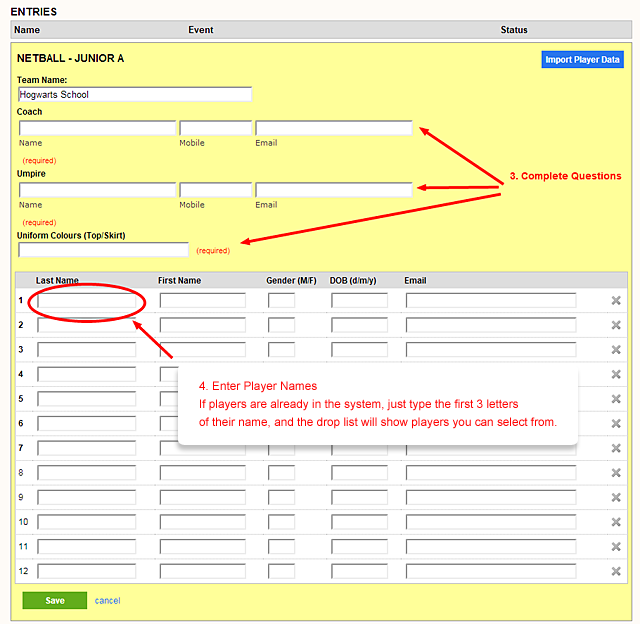
Complete any relevant questions

Enter player names into the list, and click on \[Save\] button

<p class="callout info">Note: Not all entries require player names.</p>

<p class="callout info">Hint: If you type the first 3 letters of the players name (and they are already in the system), you can select them from the drop list.</p>

[![file-uXZdPYF2yr.png](https://helpdesk.enternowonline.com/uploads/images/gallery/2020-07/scaled-1680-/file-uXZdPYF2yr.png)](https://helpdesk.enternowonline.com/uploads/images/gallery/2020-07/file-uXZdPYF2yr.png)

Once you have entered a team, you can complete any competition questions, and click on \[Save Changes\]

[![file-KDf6ZJoK6d.png](https://helpdesk.enternowonline.com/uploads/images/gallery/2020-07/scaled-1680-/file-KDf6ZJoK6d.png)](https://helpdesk.enternowonline.com/uploads/images/gallery/2020-07/file-KDf6ZJoK6d.png)
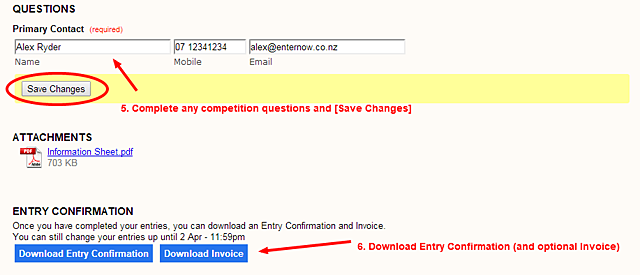
Once everything is complete, you can download an Entry Confirmation document and Invoice.

<p class="callout info">Note: Not all competitions use online invoicing.</p>