If you are running SprintTimer on a different computer to RaceManager, you will need to map a network folder that can be used by both. We recommend making that folder on the SprintTimer computer so that if there is a network outage, your results will still be able to be saved, for processing later.
In RaceManager go to **Timing** > **Settings** in the menu. [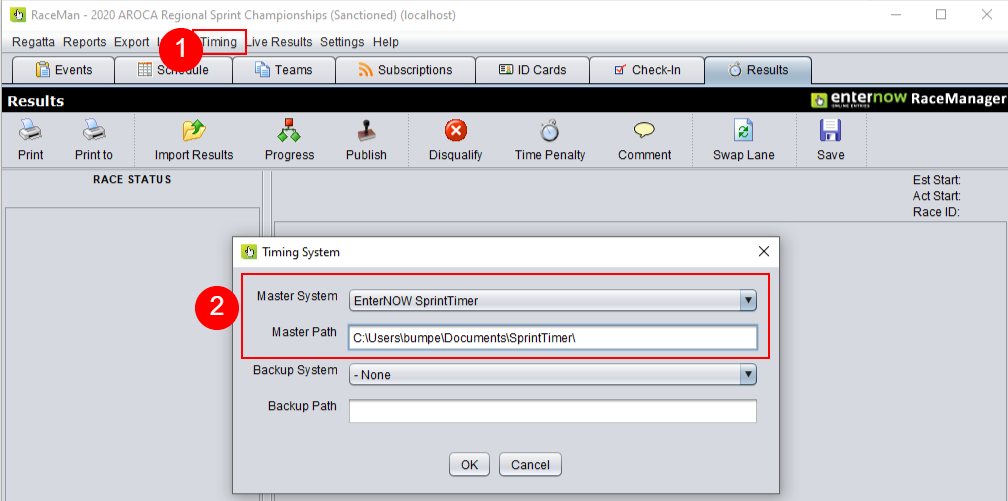](https://helpdesk.enternowonline.com/uploads/images/gallery/2020-12/image-1607458114864.png) Select EnterNOW SprintTimer from the droplist and paste the Results path into the field below, then click on \[OK\]If you are using SprintTimer as your main timing system, then you need to set it up as the Master System. If you have a Finish Lynx or other camera, then it is common to setup SprintTimer as the Backup System
In RaceManager from the menu, click on **Timing** > **Export SprintTimer Schedule** [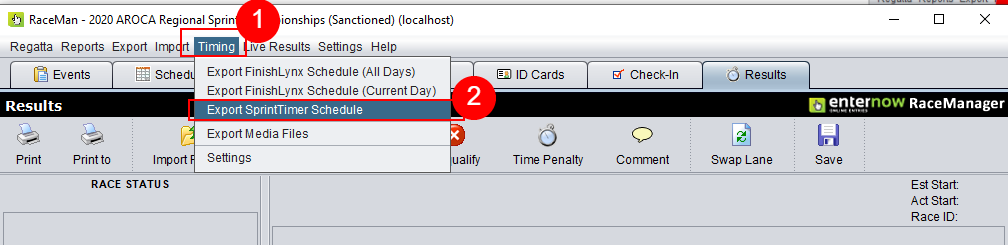](https://helpdesk.enternowonline.com/uploads/images/gallery/2020-12/image-1607458325717.png) In SprintTimer click on the race droplist and select an race number, that name of the race will be displayed, confirm the event name is as expected. [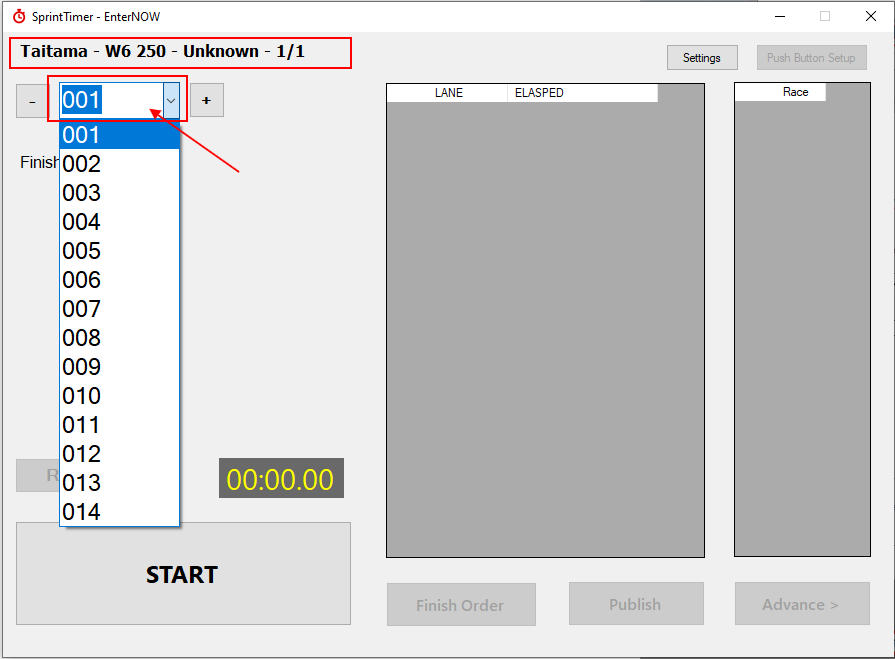](https://helpdesk.enternowonline.com/uploads/images/gallery/2020-12/image-1607458587993.png)