Race results and times are important. Do not attempt to time a race without a practice run first. If you attempt to use the race timer with no prior experience, you are risking problems on the day. At the minimum you need to read through this manual and have a practice run, prior to the event, so that you become familiar with the procedures.
### Setup To setup the event details, use the **File** > **Settings** menu option [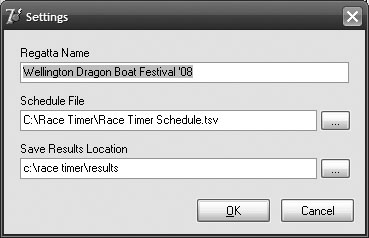](https://helpdesk.enternowonline.com/uploads/images/gallery/2020-07/1.jpg) **Regatta Name** The name of the event that will print on all the results sheets **Schedule File** The schedule file is a list of all the race numbers and race names, you can create in excel **Save Results Location** Is a folder on the computer where the results files that are generated will be saved ### Creating a Schedule File Create a excel sheet and make a list of race numbers and race names. The race numbers can be up to be 3 characters long and the race name can be what ever you like [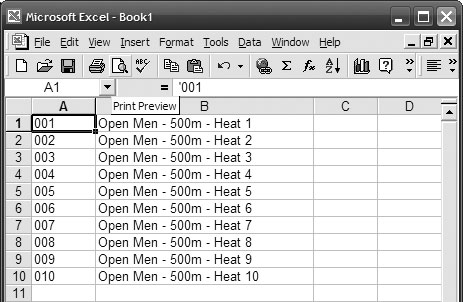](https://helpdesk.enternowonline.com/uploads/images/gallery/2020-07/2.jpg) In excel take, **File** > **Save As** from the menu When the **Save As** window is displayed, set the **Save as type** to **Text (Tab delimited) (\*.txt)**. You can name the schedule file anything you like. [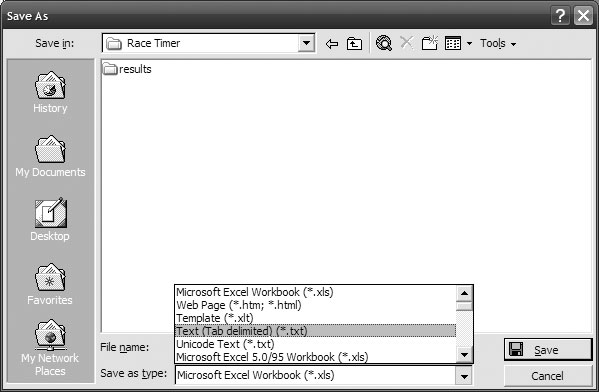](https://helpdesk.enternowonline.com/uploads/images/gallery/2020-07/3.jpg) Once you have created the schedule file, open the Race Timer and select **File** > **Settings** from the menu. In the **Settings** window select the race schedule file that you created ### Timing a Race **SprintTimer** is designed to record the finish times of the race, and for the finish order to be entered afterwards To time a race we recommend that you have at least 3 people 1. Timer - runs the race timer (good eyesight is a pre-requisite) 2. Spotter - calls the finish order (good eyesight is a pre-requisite) 3. Recorder - Writes down the finish order as it is being called This is of course dependent on the number of lanes you have, if you are running more then 4 lanes and the lanes are wide (eg 10m for canoe racing), we recommend a couple of spotters, and if you have less then 4 lanes or your lanes are narrow (1.5m for running) you could just have one person who does spotting and writing. It is up to you to find the best combination for your venue. If you are using **SprintTimer** as your primary timing system, you will also need a person with a stopwatch. Their job is to record the time of the first team that crosses the line. This can be compared with the **SprintTimer** results, to ensure the start was recorded accurately. **Step 1 - Confirm Race Number** Confirm the race number that is starting. If you have loaded a schedule file, you can select it from the drop down list, otherwise you will need to type it in.It is very important to get the race number correct, or you will cause confusion when the results are released.
[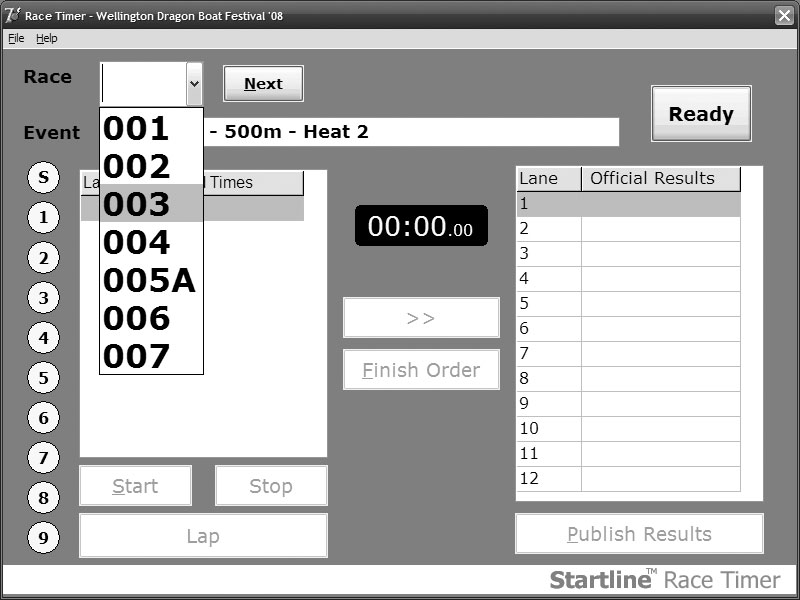](https://helpdesk.enternowonline.com/uploads/images/gallery/2020-07/4.jpg) **Step 2 - Ready** Just prior to the start of the race, you need to press the Ready button. This clears the previous race and resets the timer. **Step 3 - Start** As soon as the race begins click the Start button. You can do this with the mouse or you can also use the Space Bar, or if you have a handheld trigger this can be used too. **Step 4 -Time Lanes** As each team cross the finish line press the Space Bar (or press the handheld trigger) A time will be recorded for that team. If you press the button by mistake just press it again when the team does cross the line and we can remove the incorrect time after the race is complete.What we do here is place a bit of string vertically in front of the finish line, and take a point in the distance and the person doing the timing, can line them up to give our true finish line. This is usually a small distance in front of the marked finish line so that if the buoys drift, the same finish line will still apply to all races, giving consistency.
**[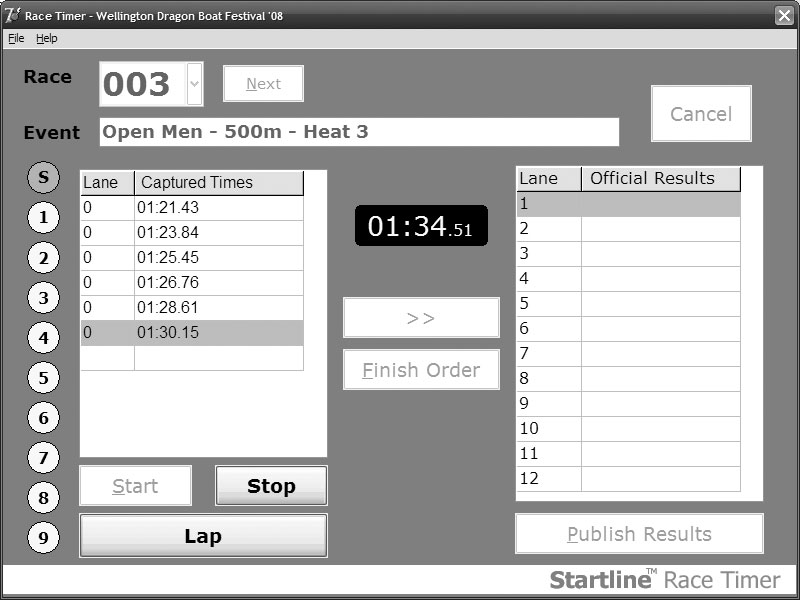](https://helpdesk.enternowonline.com/uploads/images/gallery/2020-07/5.jpg)** **Step 5- Stop Race** Once you have confirmed that the last team has crossed the line, you can click on the Stop button. This will stop the timer. This will also allow you to change the race number if you have got it wrong. **Step 6 - Finish Order** You can now enter the finish order into the system. Click the Finish Order button and key in the finish order. Double check the finish order before you press OK [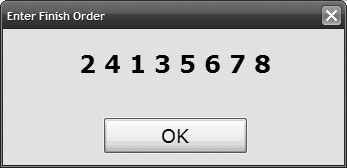](https://helpdesk.enternowonline.com/uploads/images/gallery/2020-07/6.jpg) **Step 7 - Publish Results** The last step in the process is to publish the results. This saves the results into a file that can be imported into other systems, and also prints a copy for your records. Once you have published the results, you can run through the whole cycle again for the next race. [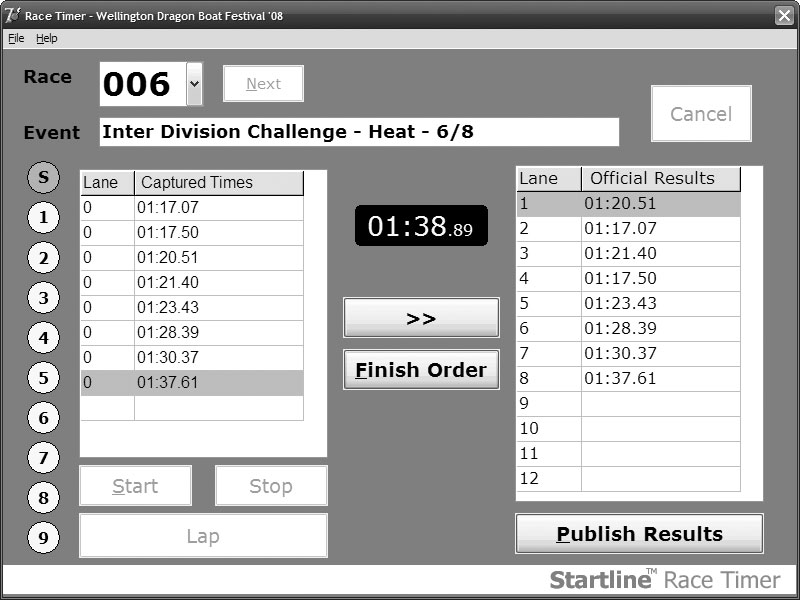](https://helpdesk.enternowonline.com/uploads/images/gallery/2020-07/7.jpg) ### Special Cases **Missed Start** Press the start as soon after the race started as possible. Either resort to backup or make an estimation of the time elapsed since the start was missed. Adjust the start time **Pressed Start early** Press start again when race does start, then removes incorrect start **Missed finisher time (too close)** Type in the finish order but leave out the lane number of the finisher who you missed, then add their time in using RaceManager, make up a time between the previous and next finisher. **Recorded extra time** Remove the extra time from the results before typing in the finish order **Pushed wrong button, hit start instead of finish** Edit the time and change from Start to Lap